Why You Need Background Removal as a Creator
Transparent PNG images are one of the most versatile assets in a creator's toolkit. Once you have a clean cutout of a subject — a person, product, logo, or object — you can place it on any background, incorporate it into any design, and repurpose it across unlimited contexts without needing to reshoot.
Specific use cases where background removal is essential: YouTube thumbnails — placing the host or subject against a branded background with text overlays dramatically improves thumbnail quality and brand consistency. Product photography — a clean white or transparent background makes products look professional and suitable for e-commerce listings, social media, and marketing materials. Canva and design projects — removing the background from a photo lets you layer it over custom backgrounds, gradients, or other images. Social media stickers — transparent PNG cutouts can be used as stickers in Instagram Stories, TikTok videos, or Reels overlays. Brand materials — clean logo cutouts without background halos are essential for consistent branding across different colored backgrounds.
How to Remove a Background for Free Online
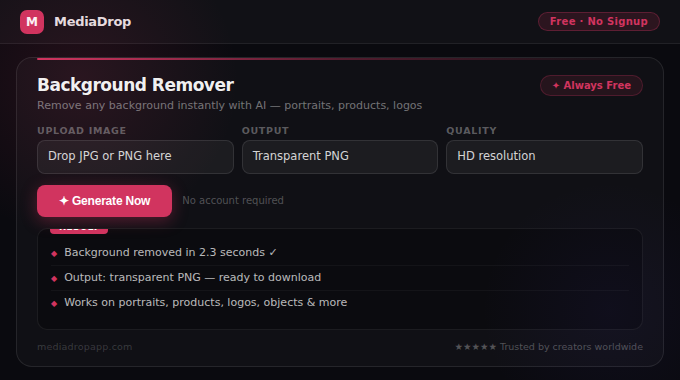
Step 1: Go to MediaDrop's free Background Remover.
Step 2: Upload your image by clicking the upload area or dragging and dropping. Supported formats: JPG, PNG, and WebP. Maximum file size: 5MB.
Step 3: The AI automatically detects the foreground subject and removes the background. Processing takes 2–5 seconds.
Step 4: Preview the result. The transparent background appears as a checkerboard pattern in the preview.
Step 5: If the result looks good, click Download PNG to save your transparent image.
Step 6: Use your transparent PNG in Canva, Photoshop, Figma, or any design tool of your choice.
The entire process is browser-based — your image is never uploaded to any server. Complete privacy. No signup required, no file limits.
Tips for the Best Background Removal Results
High contrast between subject and background produces the best results. A person photographed against a plain white, gray, or solid-color wall gives near-perfect AI detection. A person photographed outdoors against a complex natural background requires more processing and may have some edge imperfections.
Sharp, in-focus subjects are easier to detect. Motion blur, very soft bokeh that blends into the subject edges, and heavily filtered images all reduce AI detection accuracy. Use your sharpest, most clearly lit photos.
Hair and fur require extra attention. Fine hair strands against complex backgrounds are the most challenging case for AI background removal. Results are usually still good — but very fine flyaway hairs may require manual touch-up in a design tool after removal. Use the highest resolution version of the photo for the best hair detection.
Lighting that separates the subject from the background helps. Professional photographers use background lighting specifically to create visual separation between subject and background. Natural light from a window creating a side-lit subject against a darker background gives good subject definition and cleaner AI removal.
Multiple passes for complex images. For images where the first removal attempt leaves imperfections, try downloading the partial result, cleaning it up slightly in a basic editor, and running it through again. The second pass often catches edges the first missed.
What to Do With Your Transparent PNG
YouTube Thumbnails: Import your transparent PNG cutout into Canva, Adobe Express, or Photoshop. Place it over a branded background — a strong color, a gradient, or a relevant scene — and add your title text. This is the standard professional thumbnail format used by the majority of top YouTube channels.
Instagram and TikTok Content: Use transparent cutouts as overlay elements in Reels and Stories. Place your product, logo, or subject over different backgrounds to create variety without reshooting. TikTok's green screen effect also accepts transparent PNG images.
Canva Designs: Upload your transparent PNG to Canva as an element. It will automatically appear without a background, allowing you to layer it over any background, apply Canva's effects to it, or use it in any template.
E-commerce and Marketing: Product photos with transparent backgrounds can be placed on any colored background to match seasonal promotions, brand campaigns, or specific platform requirements. One product shoot produces unlimited background variations.
Pair the Background Remover with the AI Post Image Generator — generate a custom AI background for your niche, then layer your transparent PNG cutout over it to create completely original, branded social media images without a professional photoshoot.
Background Removal for Logos and Graphics
Background removal for logos and graphics works differently than for photographs. Logos typically have hard edges, solid colors, and high contrast — which makes them easier to remove than photographic backgrounds in some respects, but they also require pixel-perfect edges that photographs do not.
For logos with white or solid-color backgrounds, the AI background remover works well for most cases. For logos with complex transparency, gradients, or drop shadows, you may want to use a dedicated graphic design tool like Adobe Illustrator or a PNG transparency editor for perfect results.
One important consideration: when removing the white background from a logo, check the result against both dark and light backgrounds. Sometimes logos appear clean on one color but show artifacts on the other. Download your transparent logo PNG and test it against different background colors before using it in your brand materials.